Manav Sampada UP Portal: eHRMS Login, Salary Slip & Service Book
Manav Sampada UP is the Uttar Pradesh government’s online HR system (eHRMS), where state employees log in, apply for leave, download their salary slip, and view their service book and transfer orders at ehrms.upsdc.gov.in. It gives every employee a single account for their full service record instead of paper files.
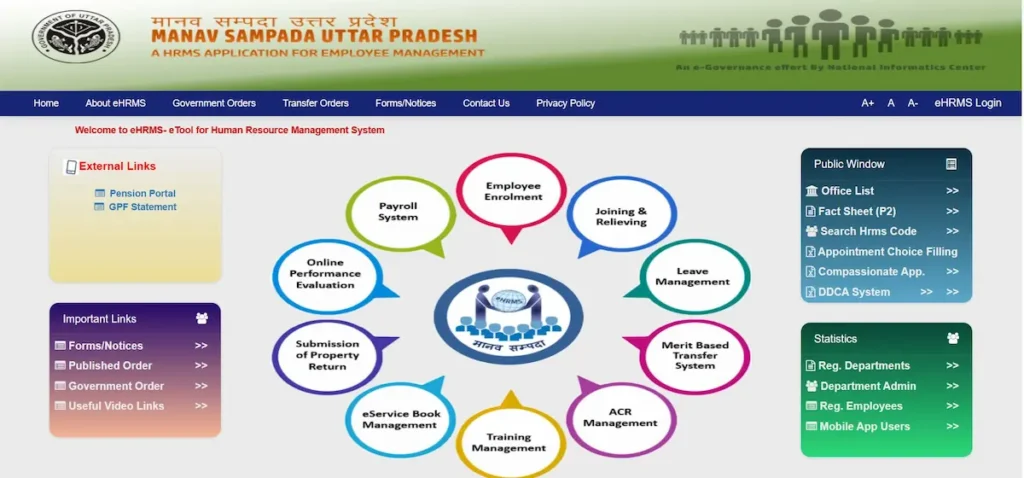
What is Manav Sampada UP?
Manav Sampada UP is the Uttar Pradesh government’s eHRMS (Electronic Human Resource Management System), developed by NIC and run by NIC’s UP State Centre, Lucknow, at ehrms.upsdc.gov.in. It puts leave (अवकाश), salary slips (वेतन पर्ची), service records (सेवा पुस्तिका), transfers, and personal details in one place for UP state government employees.
The portal serves staff across departments — teachers, doctors and health workers, police personnel, clerks, and officers in Basic Education, Medical & Health, Police, Revenue, Panchayati Raj, and more. Each employee gets one digital identity, an Employee ID (HRMS Code), that stays with them for their entire service period and links their leave, pay, postings, and promotions.
The same eHRMS platform is used by several Indian states. It was first rolled out in Himachal Pradesh and later adopted by Uttar Pradesh and others.
The Official Website (and How to Avoid Fake Sites)
The only official portal is ehrms.upsdc.gov.in. Searches such as ehrms upsdc gov in up, manav sampada up gov in, manav sampada up gov nic in, manav sampada upsdc gov in, ehrms manav sampada up, and hrms manav sampada up all lead to this same website.
A common point of confusion: “eHRMS” and “HRMS” mean the same system, and “Manav Sampada” is simply its name. The national parent portal is ehrms.nic.in, while Uttar Pradesh’s portal is ehrms.upsdc.gov.in — that is the one UP employees use.
To confirm you are on the genuine page, check that the address ends in upsdc.gov.in, that the padlock icon shows in the address bar, and remember the portal never asks for your password or OTP by email or SMS.
This site is an independent help resource. We never ask for your login, password, OTP, or Employee ID.
Who Can Use the Portal (Eligibility)
You can use Manav Sampada UP if:
- You are a serving Uttar Pradesh state government employee.
- Your department is integrated with eHRMS, so its services are switched on for you.
- Your record has been registered by your department’s nodal officer — there is no self-registration.
Retired pensioners may get limited, view-only access to see their records and download documents, depending on their department’s policy. Your Employee ID / User ID is issued by your department, not created by you, so a new employee gets it from the office, not from the website.
How to Log In to Manav Sampada UP
To log in, go to https://ehrms.upsdc.gov.in, click eHRMS Login in the top-right, select your department, enter your User ID and password, type the CAPTCHA, and complete the OTP if your department uses it.
Follow these steps:
- Open ehrms.upsdc.gov.in in Chrome, Firefox, or Edge.
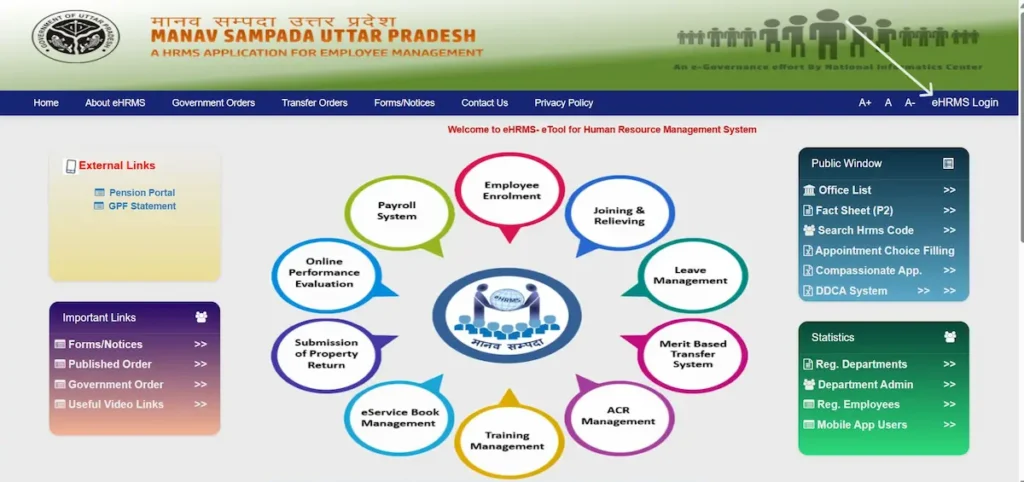
- Click the eHRMS Login button in the top-right corner of the homepage.
- In the login window, choose your department from the dropdown — for example, teachers select their Basic Education directorate.
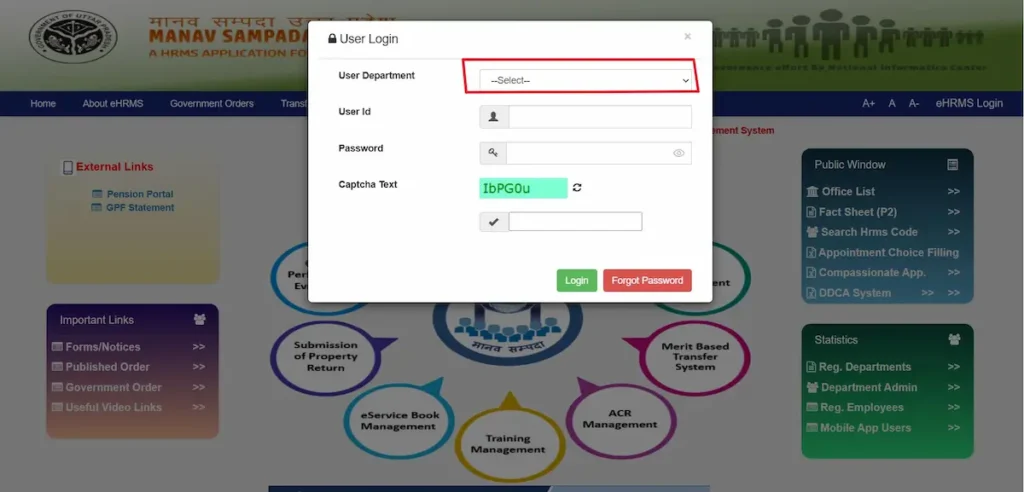
- Picking the wrong department is the most common reason an ID “won’t open.”
- Enter your User ID (your Employee ID / employee code) and your password.
- Type the CAPTCHA exactly as shown — it is case-sensitive.
- Click Login. If asked, enter the OTP sent to your registered mobile and click Validate. Your dashboard opens.
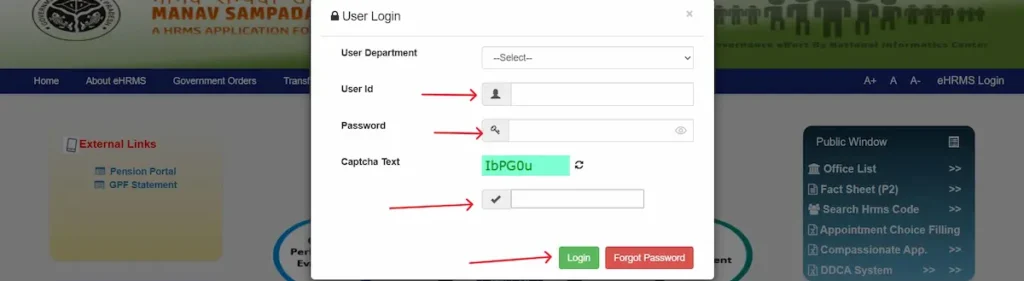
An OTP may be requested every time you log in, so your correct mobile number must be registered on the portal.
Default Password — Correct Format
For a first-time login, the password commonly used is the first 3 letters of your name in CAPITALS + your 4-digit birth year — for example, RAJ1981 for Rajesh born in 1981.
Two things decide whether this works:
- It works only if you have never used “Forgot Password.” After any reset, the default stops working and you must use the new password you set.
- If your name is spelled differently in the records, the password follows that spelling, not your usual one.
This format is set by your department, so if it does not work, your nodal officer can confirm the correct one for you.
First-Time Login — What to Set Up
On your first login, set a strong new password — at least 8 characters mixing an uppercase letter, a lowercase letter, a number, and a symbol. Confirm your registered mobile number and email, since both are used for OTPs and alerts. Then check your service details — joining date, designation, and office. If anything is wrong, request the correction through your DDO or nodal officer with supporting proof; do not try to edit locked fields yourself.
Forgot Password / Reset
On the login page, click Forgot Password, enter your Employee ID, and verify the OTP sent to your registered mobile to set a new password. If the OTP does not arrive, your mobile number is most likely not registered on the portal — see the troubleshooting section below for the fix.
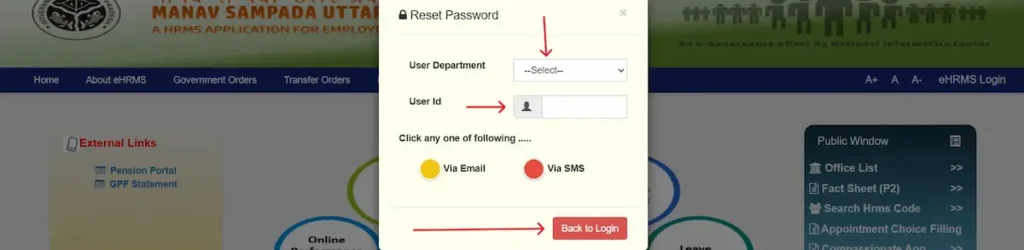
Log In for Your Department
The login screen is the same for everyone. What changes is the department you select and the department code attached to your record. Pick yours correctly and the rest of the steps in the login section above apply.
Teachers & Basic Education
Basic Education teachers log in at ehrms.upsdc.gov.in, then select their Basic Education directorate from the department dropdown (the Basic Education family is commonly shown as EDUBASIC). After that, the User ID, password, and CAPTCHA steps are the same as any other employee.
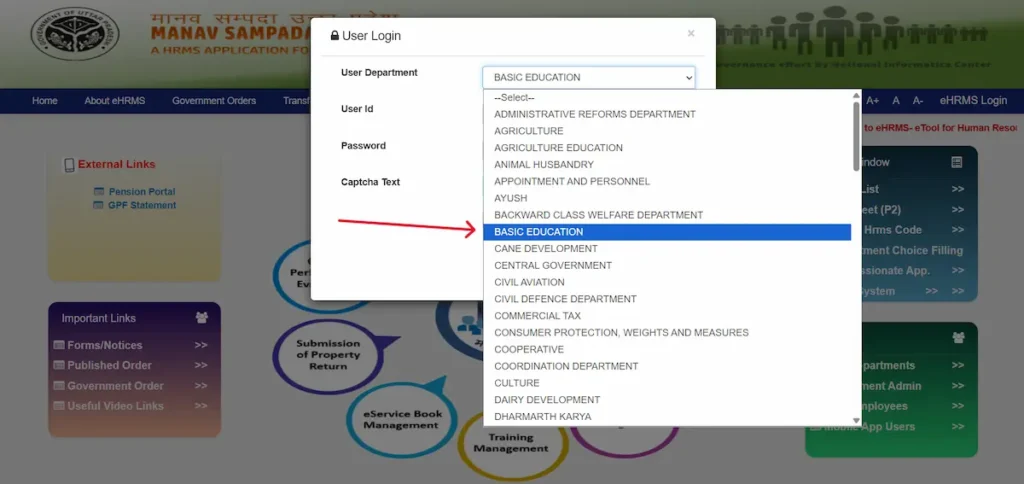
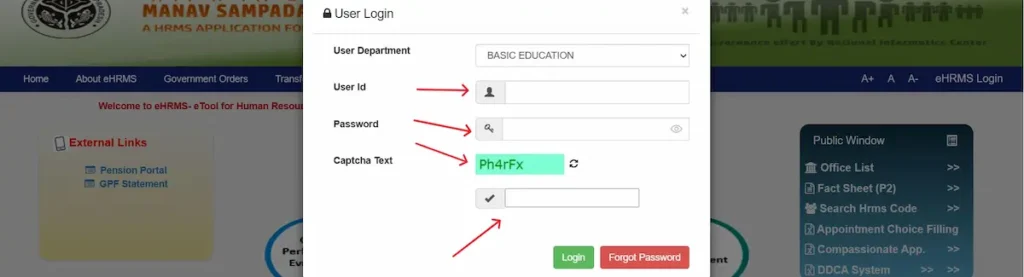
A teacher’s records are maintained at the school and block level, so your data, leave, and postings are updated by your office, not by you. Once logged in, you can open your e-Service Book, apply for leave, and view your transfer or posting orders.
Your Employee ID appears on your appointment letter, government ID card, salary slip, and the first page of your service book. If your teacher login fails or your profile looks inactive, your nodal officer — reached through your principal or BEO/BRC — is the right person to confirm it.
Medical & Health Department Staff
Doctors, nurses, and paramedical staff log in the same way and select the Medical & Health / Family Welfare department in the dropdown. From the dashboard you get the same access — leave, salary slip, and e-Service Book.
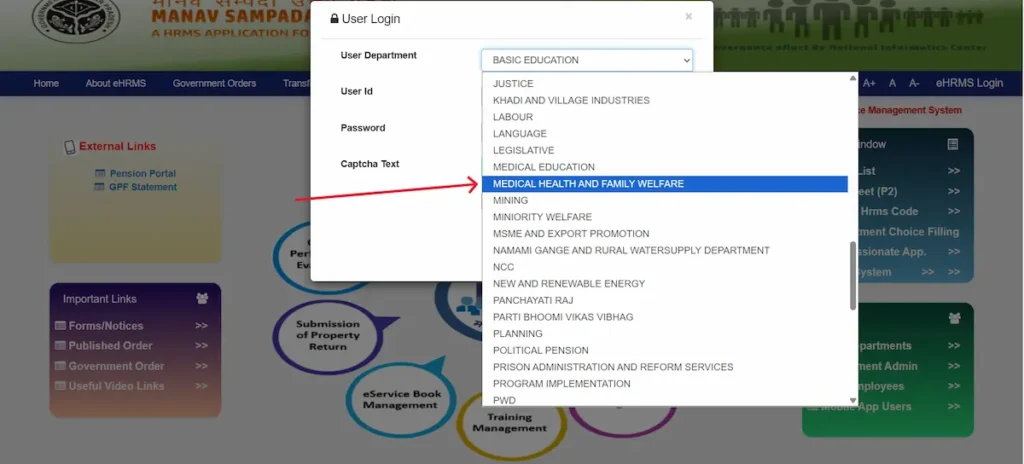
Because health staff are often redeployed, your transfer and posting orders also show here once your department updates them. For a missing Employee ID or a login that won’t open, contact your departmental nodal officer.
Police Department Staff (and Salary Slip)
Police personnel log in at ehrms.upsdc.gov.in, select the Home (Police) department, and reach their salary slip under Payroll / Salary Slip after login. The steps match the salary section below: open Payroll, pick the month and year, and download the PDF.
The slip itself breaks down your earnings and deductions for that month. Actual pay depends on your rank, pay level, and allowances, so treat the downloaded slip as the source of truth rather than any figure quoted elsewhere. If a month’s police salary slip is missing, that month’s payroll may not be updated yet — the troubleshooting section explains what to do.
How to Find Your Employee ID / Search Manav Sampada
You can find your Manav Sampada Employee ID without logging in by using the public Fact Sheet (P2) search, or by asking your nodal officer and checking your own documents.
Method 1 — Documents and nodal officer. Your 8-digit Employee ID is printed on your appointment letter, government ID card, salary slip, and the first page of your service book. The most reliable source is your nodal officer, reached through your principal or district office, who can confirm the ID and whether your profile is active.
Method 2 — Public Fact Sheet (P2) search (no login). Open ehrms.upsdc.gov.in/ReportSummary/PublicReports/EmployeeFactSheet, choose your Parent Department and your organisation/district, search by employee name, and view the report — your service details appear. If no result shows, try an alternate spelling of the name, since records sometimes differ by a letter. This same search is the quickest way to search Manav Sampada UP for your own employee details.

How to Apply for Leave (अवकाश)
Log in, add your Reporting Officer once, then open Online Leave Application → Apply Leave, choose the leave type and dates, upload any required document, and submit to get an application number.
The step most people miss: before your first leave request, you must add a Reporting Officer. Go to Online Leave → Add Reporting Officer, enter your officer (for a teacher, this is usually your BEO), and save. Without this, the portal has no one to forward your request to, and the application simply won’t move.
Then apply:
- Log in at ehrms.upsdc.gov.in (see the login process above).
- On the dashboard, open the Leave Module, then Apply Leave.
- Confirm the Reporting Officer — it may show automatically.
- Select the Leave Type; the system auto-calculates the total days once you pick your dates.
- Enter the From / To dates, reason, address during leave, and contact number; set prefix/suffix or station-leave options if they apply.
- Upload the required document as a PDF under 2 MB (see below).
- Review and Submit, then note the application number for tracking.
The leave types you can apply for include Casual (CL), Earned (EL), Medical (ML), Maternity, Paternity, Child Care (CCL), and Study leave.
Documents Required by Leave Type
A missing document causes automatic rejection, so prepare the right file first and keep each one a PDF under 2 MB:
- Medical (ML): a registered doctor’s / RMP certificate (with registration number) plus supporting reports.
- Maternity: hospital admission proof and the related certificate.
- Child Care (CCL): the child’s birth certificate and a school or doctor note for age eligibility.
- Study: an admission letter from a recognised institution and proof of the course duration.
Keep your basic documents ready too — employee ID proof, Aadhaar for verification, and a registered mobile number and email.
Check Leave Status & Leave Balance
Track a request under Leave → Leave Status / Leave History, and see how many days you have left under Leave → Leave Balance / Leave Account, which you can download as a PDF.
| Status | Meaning | What to do |
|---|---|---|
| Pending | Awaiting your officer’s approval | Follow up with the reporting officer after about 48 hours |
| Approved | Leave sanctioned | Save or print the sanction record |
| Rejected | Turned down | Read the Remarks, fix the issue, and re-apply |
How to Download Your Salary Slip (वेतन पर्ची)
Log in at ehrms.upsdc.gov.in, open Salary / Pay Slip under Employee Services / Payroll, choose the month and year, and click View / Download to save it as a PDF.
In short: dashboard → Payroll / Salary Slip → select month + year → Download (PDF). The slip works as income proof for a loan or other records. If a particular month is missing, that month’s payroll may not be updated yet — wait a little, or contact your department’s accounts / HR section.
Transfer & Posting Orders — Manav Sampada Aadesh (आदेश)
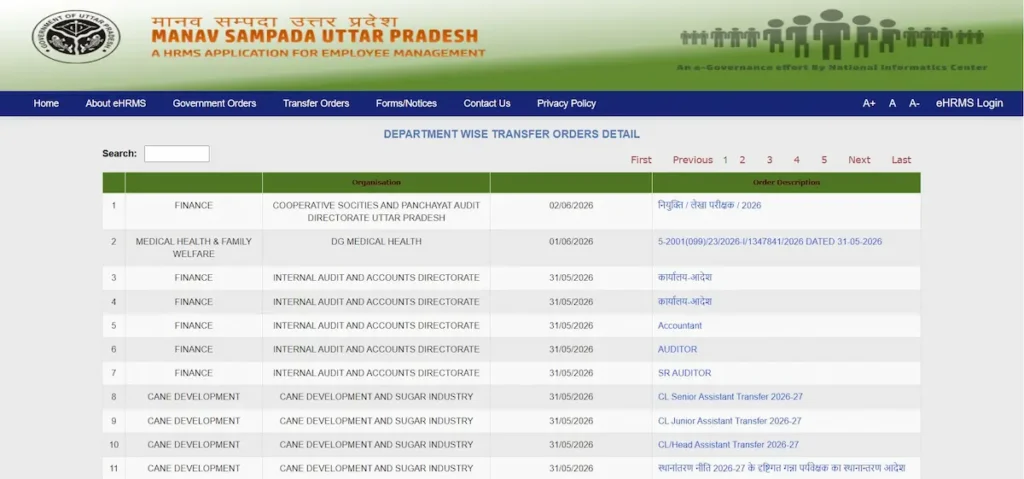
Public transfer and posting orders (aadesh) are listed on the portal’s Notice Board at ehrms.upsdc.gov.in/Home/HomeNoticeBoard. Your personal orders appear after login under the Transfer / Posting section.
Click any order to open or download it as a PDF. Some orders carry a QR code so the document can be verified. If no order shows for you, it usually means none has been issued yet, or your department has not updated the details in the system. Checking the Manav Sampada aadesh list on the Notice Board is the fastest way to see published department-wide orders.
View Your Service Book (e-Service Book / सेवा पुस्तिका)
After login, open the Service Book section to view your appointment, promotions, transfers, pay, and leave history — your full service record in one place. Download it where the option is enabled.
Service-book entries cannot be edited by employees. If you spot a wrong increment, posting, or ACR entry, report it to your nodal officer / DDO for correction with supporting proof. This keeps your record accurate for future promotions and pension processing.
Public Services Without Login (Office List & Fact Sheet)
Two tools work without logging in, both under Public Reports / Public Window:
- Office List — open …/PublicReports/GetOfficesByDepatmentandDistrict, filter by department, district, and office category, and export the result as PDF or Excel. Office codes look like EDUBASIC-LKO-D-001.
- Fact Sheet (P2) — open …/PublicReports/EmployeeFactSheet to search service details by department or name. This is also the search used to find an Employee ID above.
m-STHAPANA Mobile App
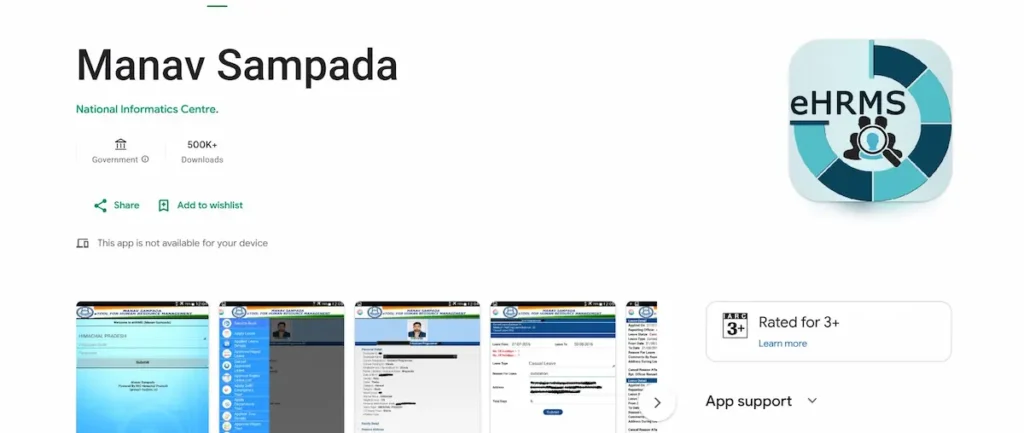
The official mobile app for Manav Sampada UP is Manav Sampada (commonly called m-STHAPANA), available on the Google Play Store. It covers the main tasks on mobile — leave, salary slips, and your service book.
Install it only from the official Play Store, and confirm the publisher is NIC (National Informatics Centre) before downloading. Never use a third-party app or a link sent over WhatsApp or SMS. iPhone users can use the mobile site at ehrms.upsdc.gov.in instead, since a reliable iOS app is not available.
Common Problems and Verified Fixes
Most login and leave issues on Manav Sampada UP come from a few specific causes. Here are the real reasons and what to do about each.
- The OTP is not arriving. Your mobile number is usually wrong or not registered in the system. Ask your nodal officer / BRC to update the correct number in the master data, then try again. Also check your network signal and use the “Resend OTP” option.
- The department “won’t open” or the ID is rejected. You almost certainly picked the wrong department in the dropdown. Go back and reselect the correct one, then log in again.
- The CAPTCHA keeps showing invalid. The CAPTCHA is case-sensitive, so type it exactly, and refresh for a new CAPTCHA on each attempt. Watch closely for O versus 0 and l versus I.
- The default password is not working. It was most likely reset once already. Use the new password you set, or click Forgot Password to set a fresh one.
- The account is locked after repeated attempts. Wait for the cool-down period to pass, then reset access through Forgot Password.
- A salary slip month is missing. That month’s payroll has not been updated yet. Wait a little, or contact your department’s accounts / HR section.
- A service or salary detail is wrong. Request the correction through your DDO / nodal officer with proof — employees cannot edit locked records themselves.
Manav Sampada UP Services at a Glance
| Service | Login needed? | Where to find it |
|---|---|---|
| eHRMS Login | — | Top-right of the homepage |
| Apply / track leave | Yes | Leave Module |
| Salary slip | Yes | Payroll / Salary Slip |
| e-Service Book | Yes | Service Book |
| Transfer / posting orders (Aadesh) | Public + Login | Notice Board / Transfer section |
| ACR | Yes | Self-service |
| Find Employee ID | No | Fact Sheet (P2) |
| Office List | No | Public Reports |
Frequently Asked Questions
What is the official website of Manav Sampada UP?
The official portal is ehrms.upsdc.gov.in. Variants people type — manav sampada up gov in, manav sampada up gov nic in, and manav sampada upsdc gov in — all point to this same site. The national parent portal is ehrms.nic.in.
Is “eHRMS” the same as “HRMS Manav Sampada”?
Yes. eHRMS, HRMS, and Manav Sampada all refer to the same Uttar Pradesh employee system.
What is the default password for Manav Sampada UP?
The first three letters of your name in capitals plus your four-digit birth year, such as RAJ1981. It works only if you have never reset your password.
How do teachers log in to Manav Sampada UP?
Open ehrms.upsdc.gov.in, click eHRMS Login, and select your Basic Education directorate before entering your User ID, password, and CAPTCHA.
How do I find my Employee ID?
Use the public Fact Sheet (P2) search, or check your appointment letter, ID card, salary slip, or service book. Your nodal officer can also confirm it.
How can police staff download a salary slip?
Log in under the Home (Police) department, open Payroll / Salary Slip, pick the month and year, and download the PDF.
Why am I not getting the OTP?
Your mobile number is likely not registered. Ask your nodal officer to update it in the records, then retry.
Can I register myself on the portal?
No. Your nodal officer registers you, and you receive an Employee ID and login from your department.
Can retired employees use the portal?
In many cases retired pensioners get limited, view-only access to records and documents, depending on the department.
Where do I see my transfer order (aadesh)?
Public orders are on the Notice Board at ehrms.upsdc.gov.in/Home/HomeNoticeBoard; your personal order appears after login under Transfer / Posting.